Vibe Coding 课程-干货集训
02 如何安装&配置Claude Code
Claude Code在哪使用
插件(首推)
- 在编程工具中使用Claude Code插件
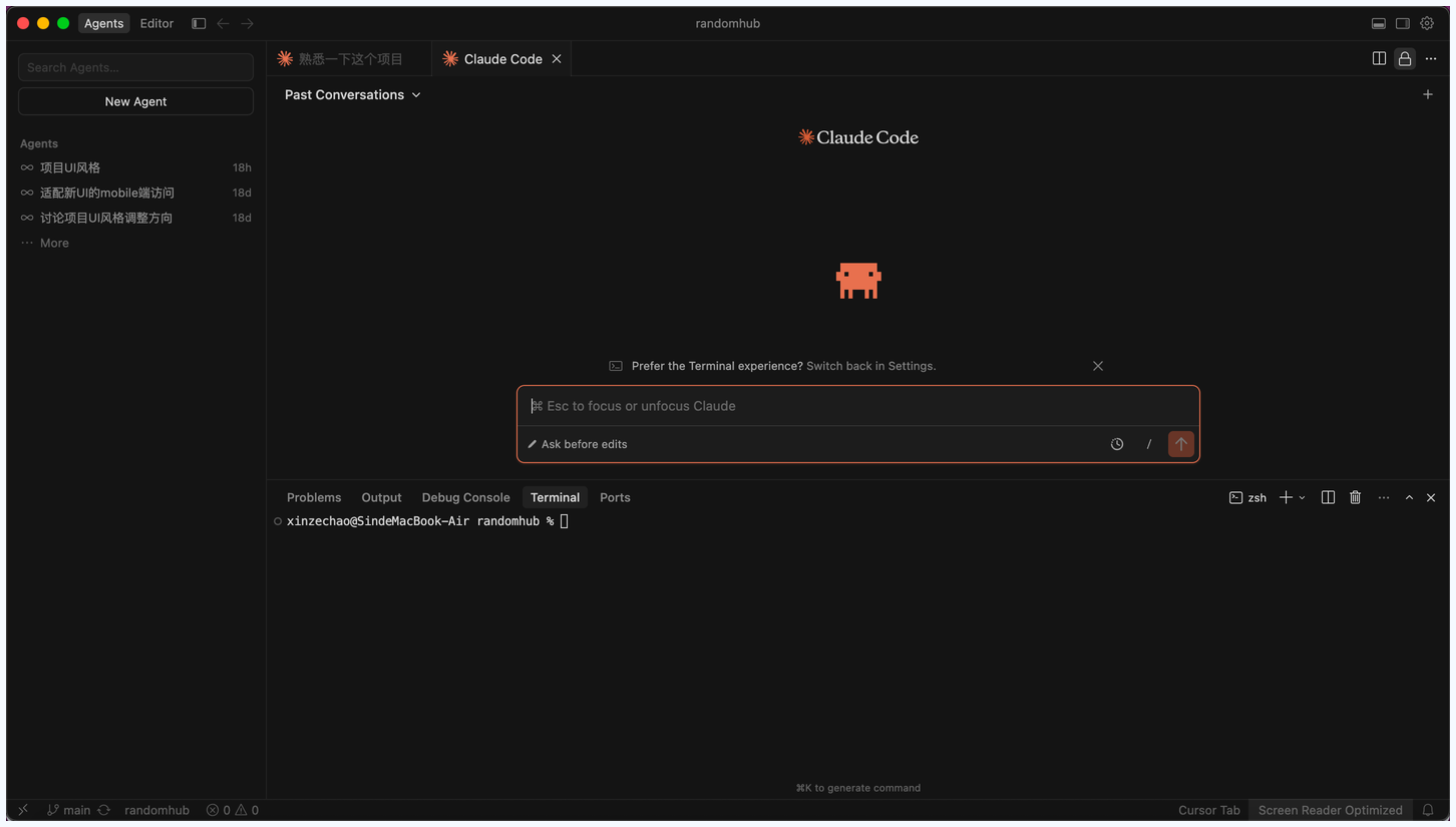
Claude Code for Cursor
Claude Code for VSCode
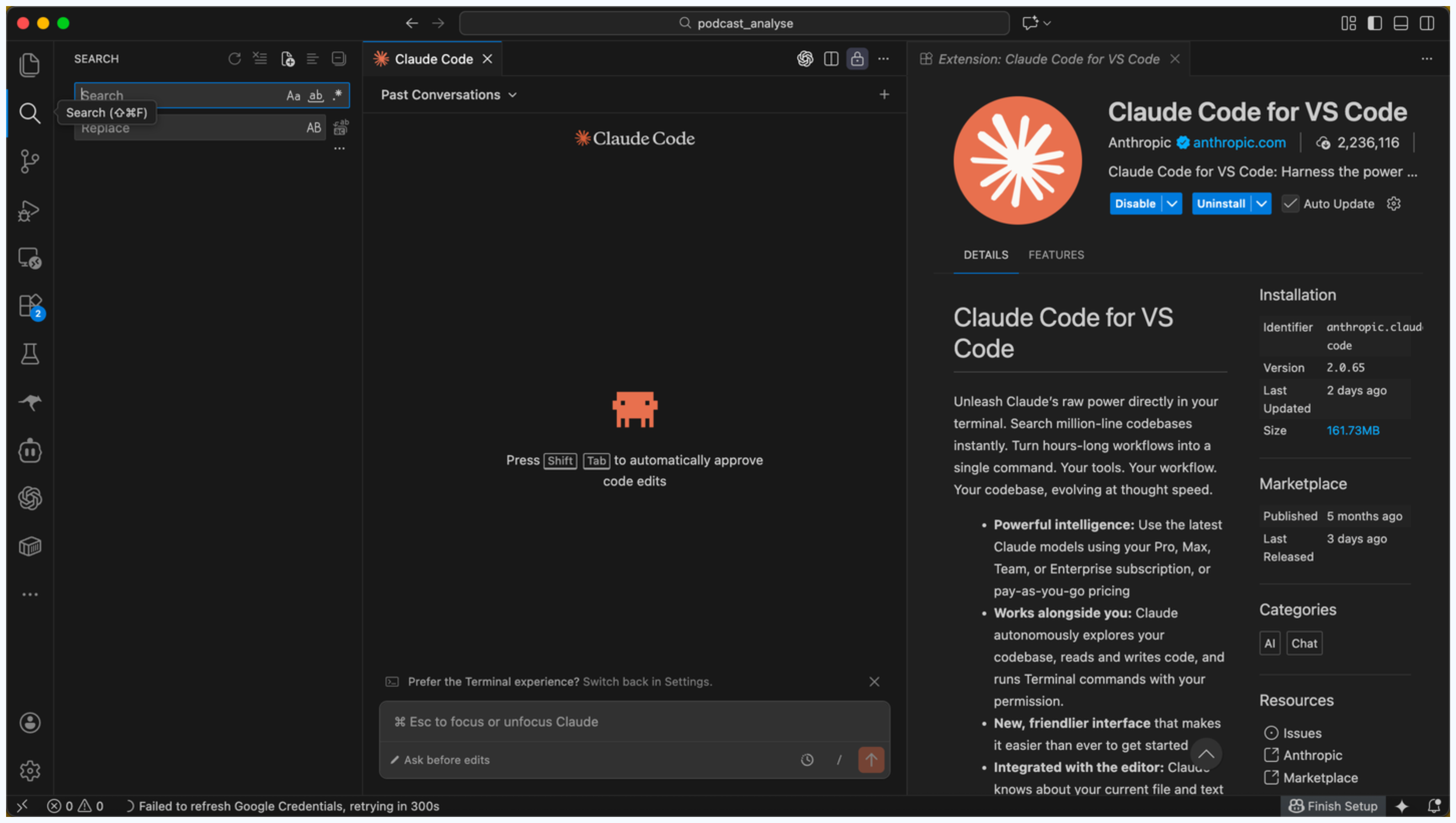
- 新手推荐指数
- 🌟🌟🌟🌟🌟
- 优势
- 劣势
CLI
- 在电脑本地终端使用Claude Code
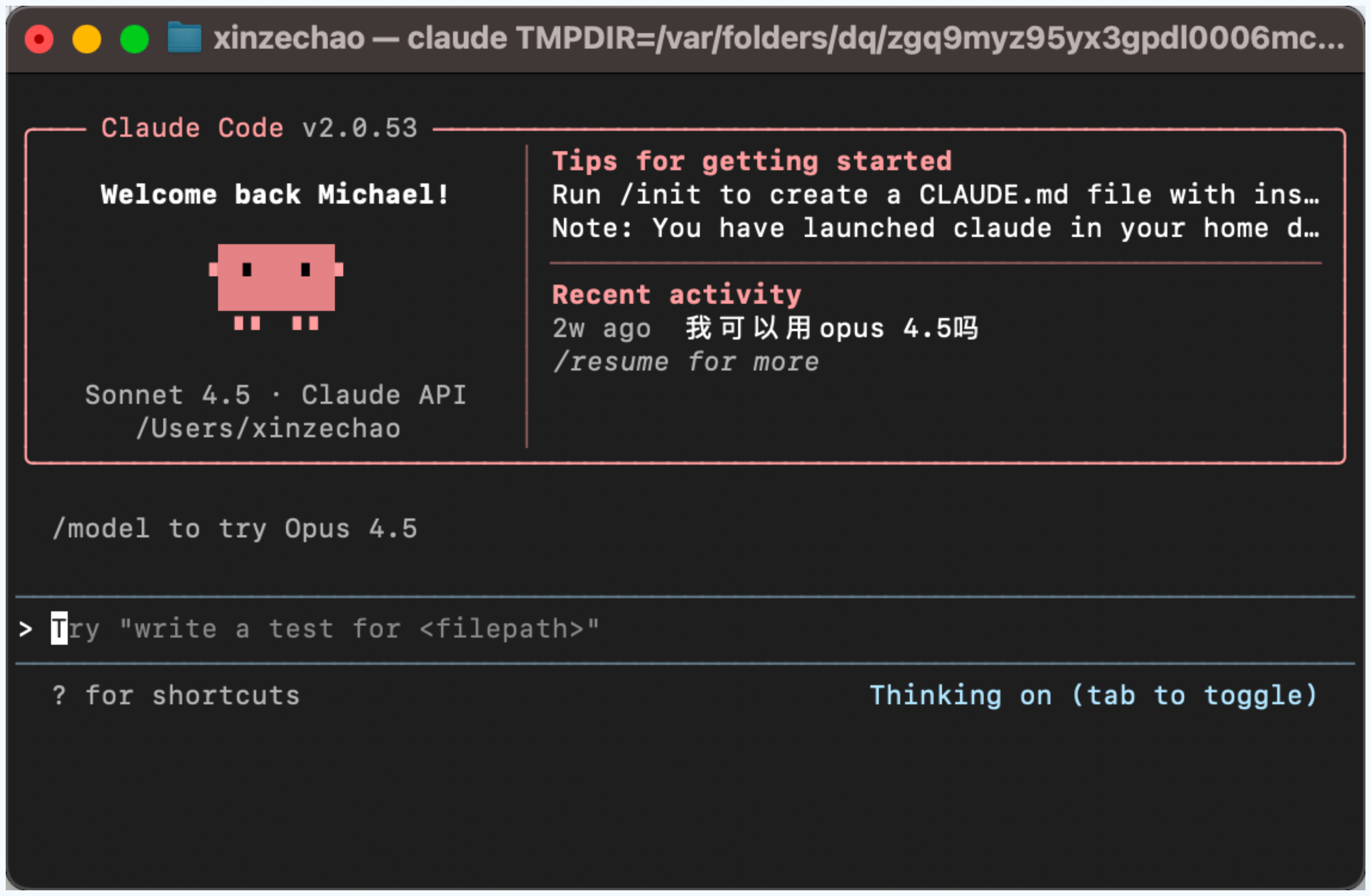
- 新手推荐指数
- 🌟🌟🌟🌟
- 优势
- 劣势
Web
- 在浏览器使用Claude Code
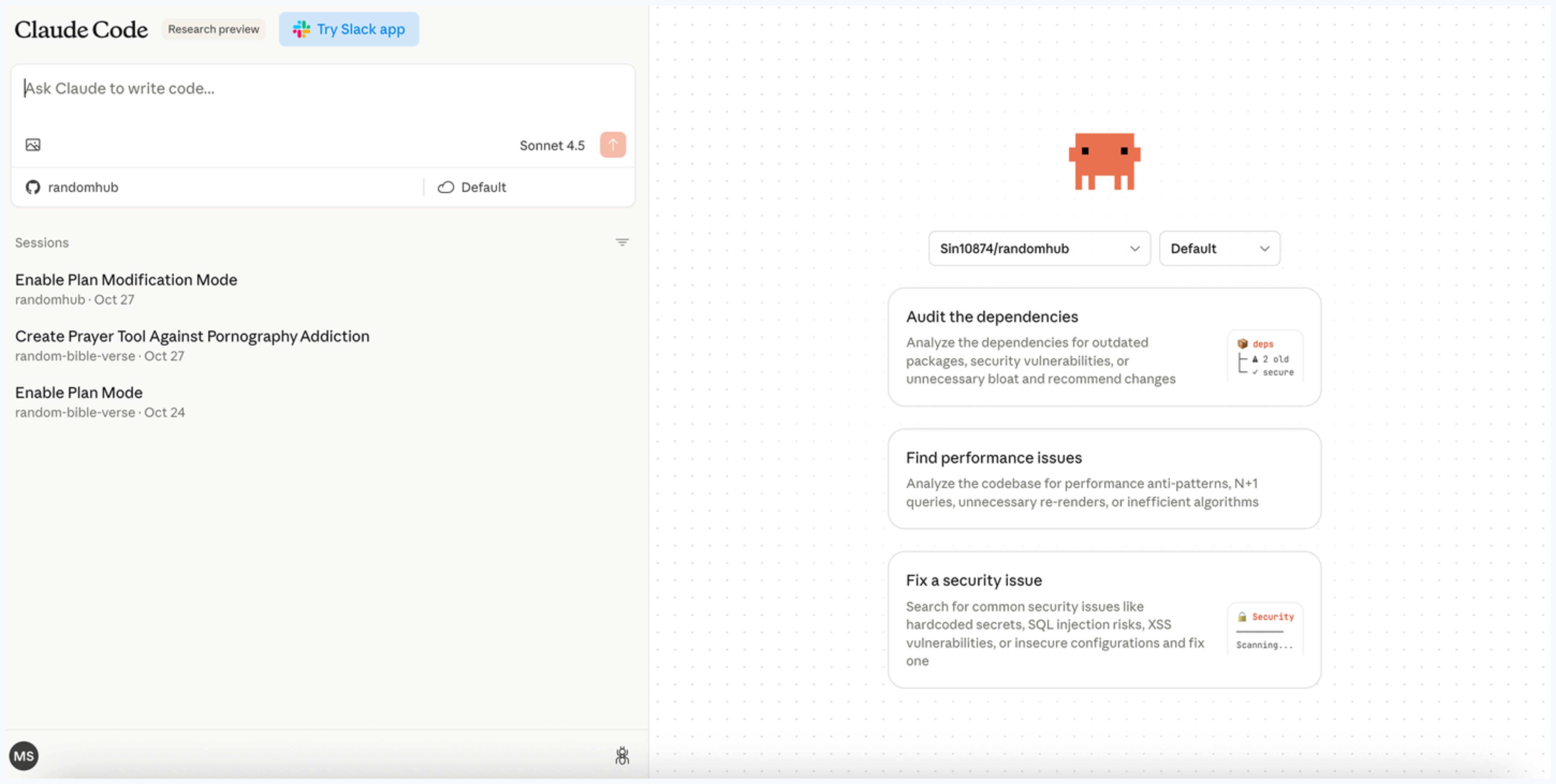
- 新手推荐指数
- 🌟🌟🌟
- 优势
- 劣势
安装Claude Code插件(以Cursor为例)

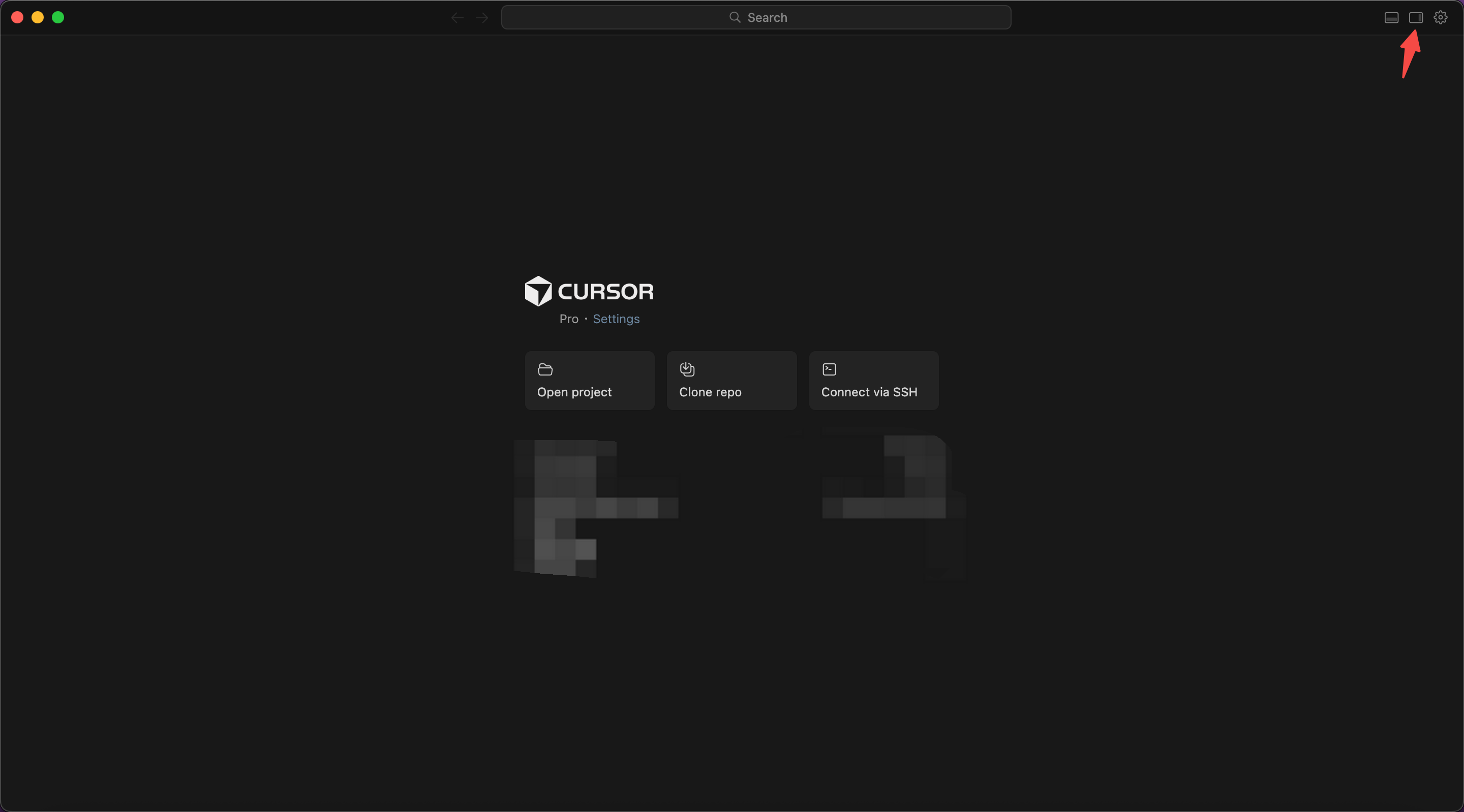
Step 1 · 下载Cursor
- 下载并安装
- Cursor:https://cursor.com/

- VScode(Visual Studio Code):https://code.visualstudio.com/download
- Cursor:https://cursor.com/
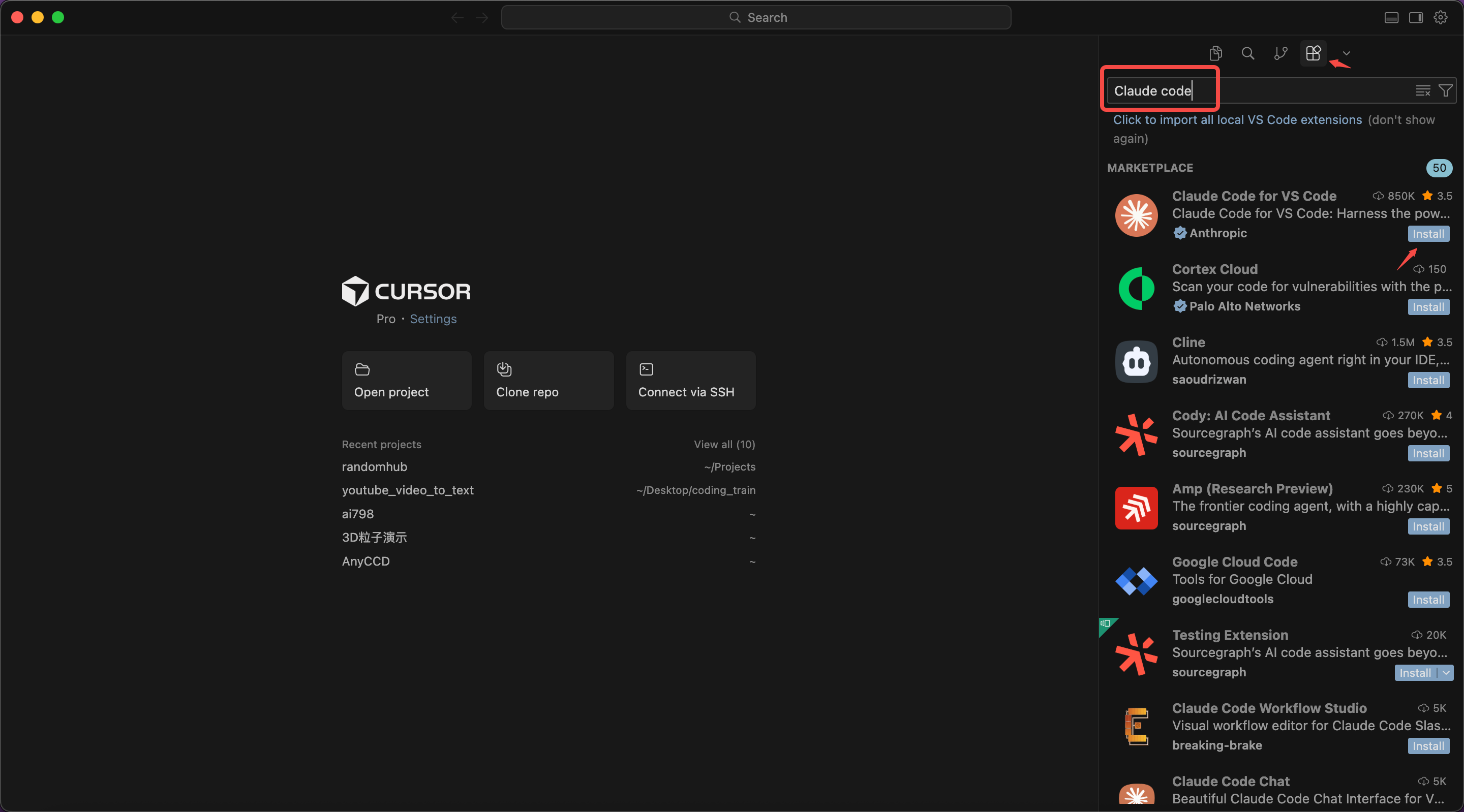
Step 2 · 下载Claude Code插件
- 打开Cursor,进入「插件」面板,搜索“Claude Code”并下载
Step 3 · 登录Claude Code
- 安装完成后,点击"..." - 「」
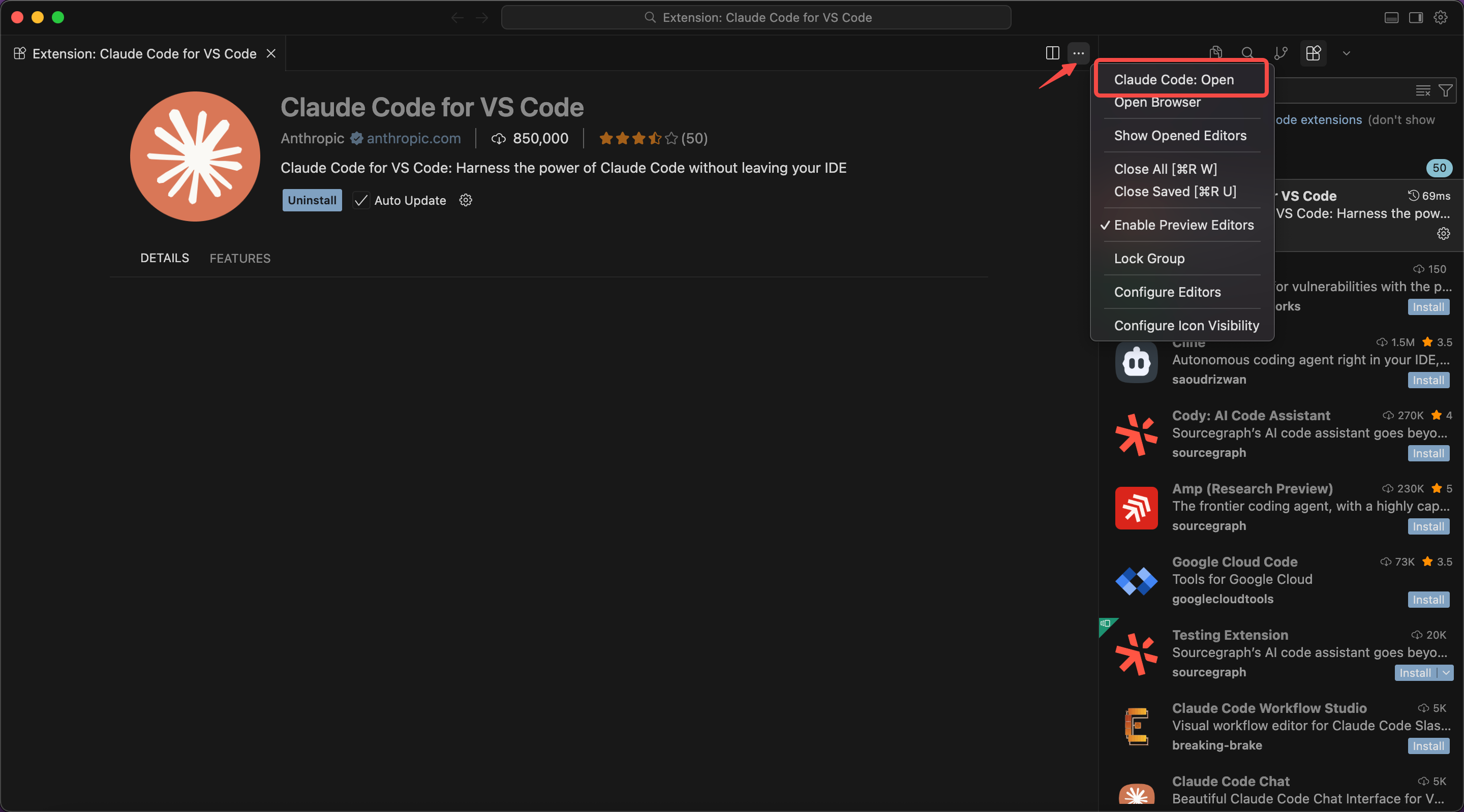
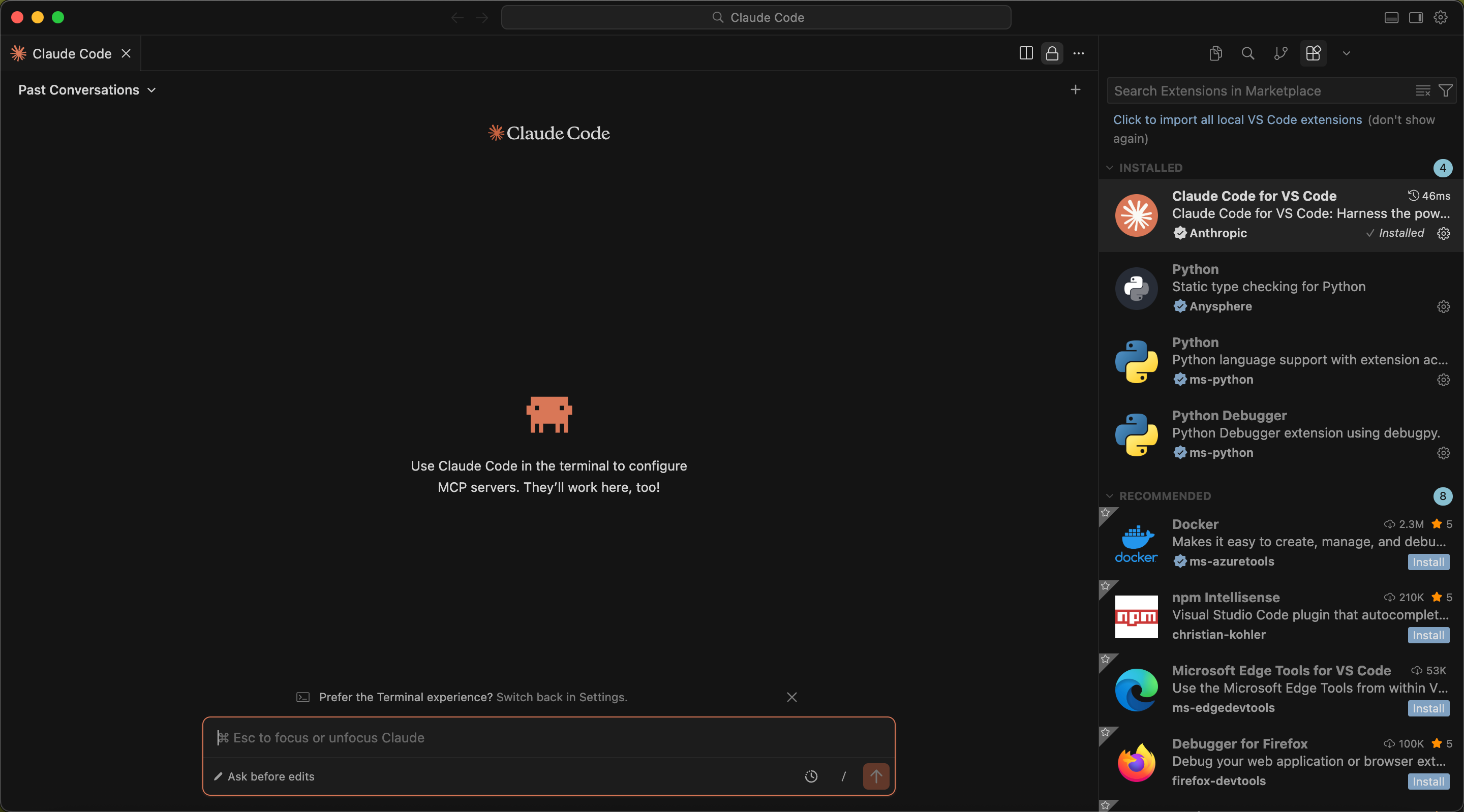
- 进入Claude Code对话页面
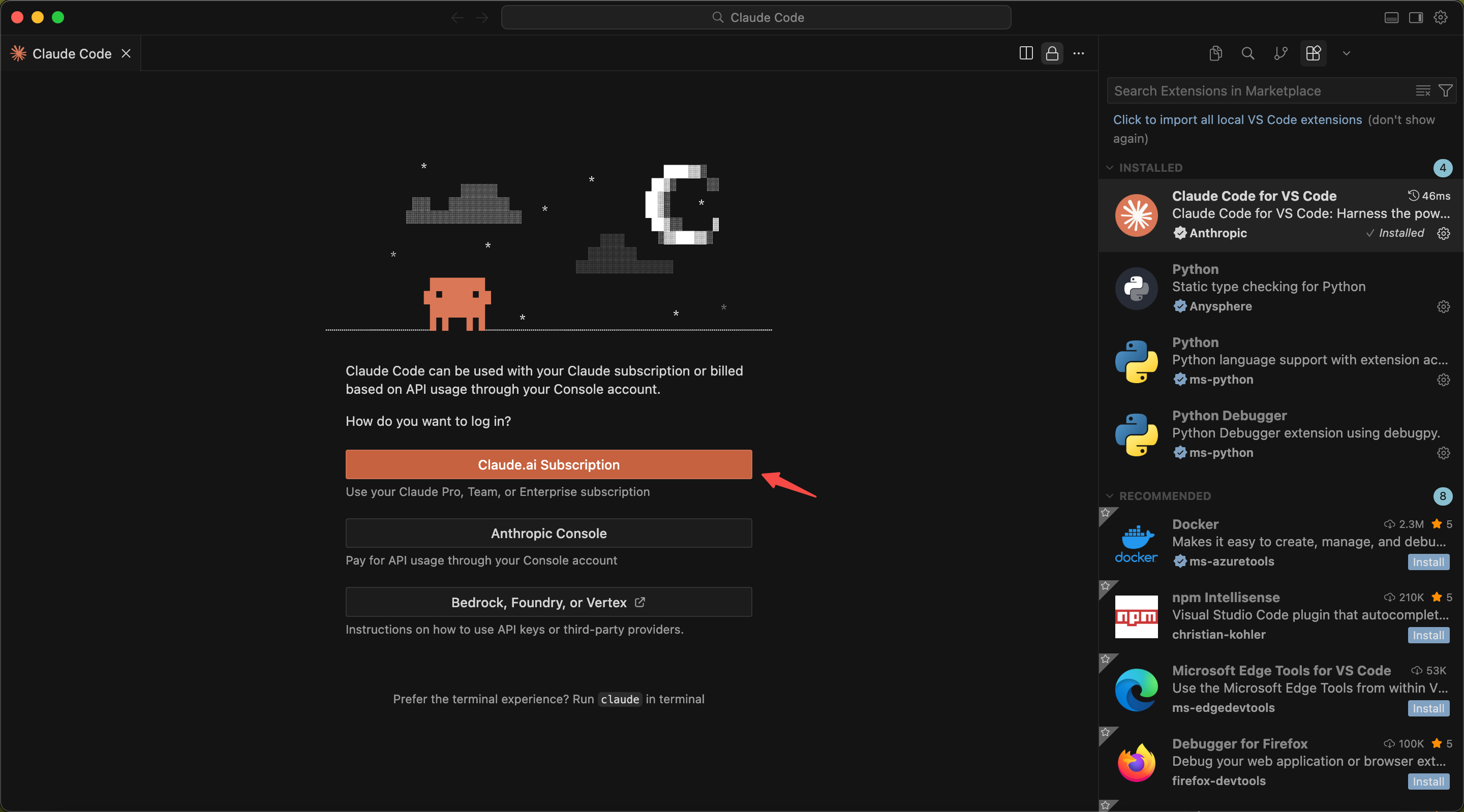
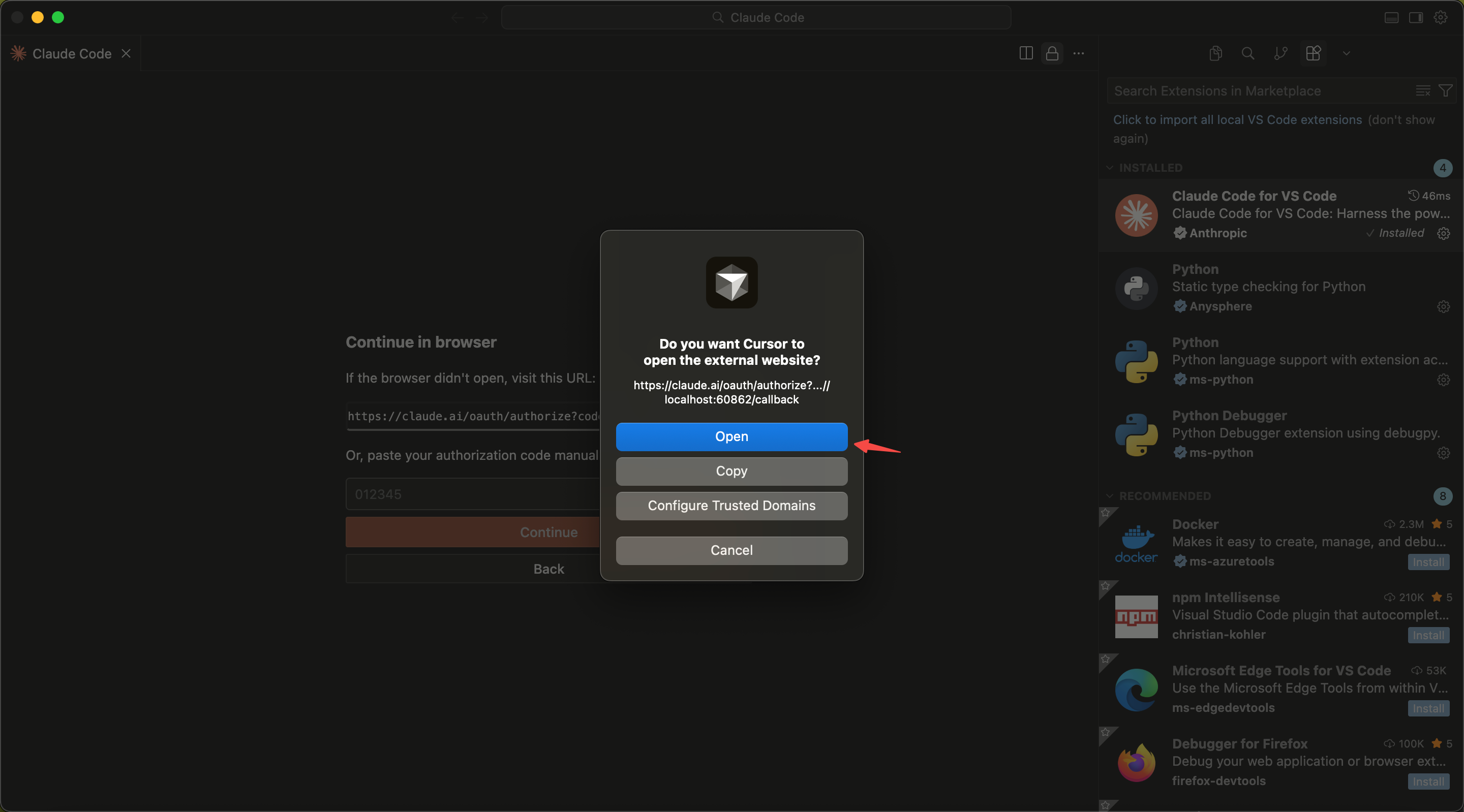
- 点击「Claude.ai Subscription」,打开网页进行授权
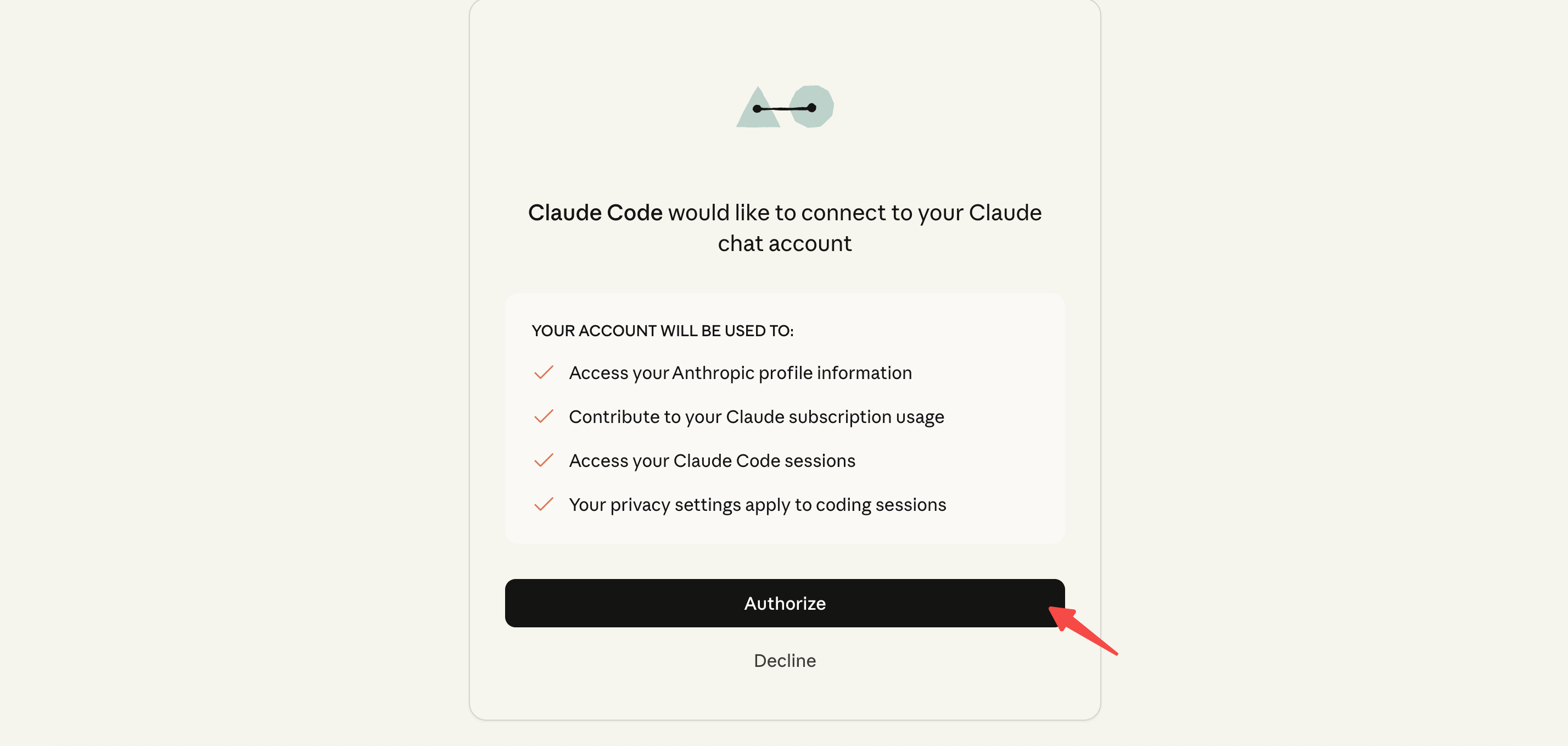

- 授权成功,回到Cursor就能开始使用Claude Code了
安装Claude Code CLI
MacOS

Step 1 · 安装Node.js
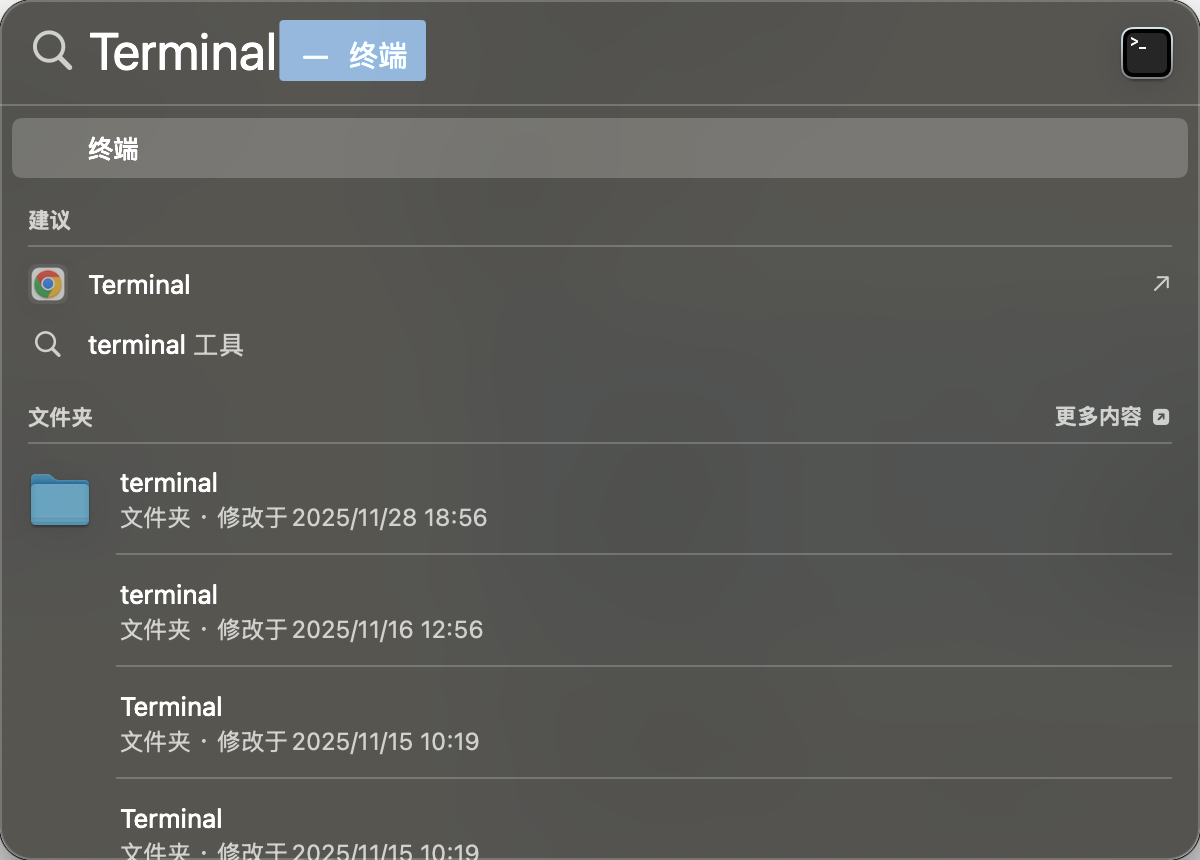
- 打开终端:Command + 空格 ➡️ 输入“Terminal”(即终端) ➡️ 打开终端
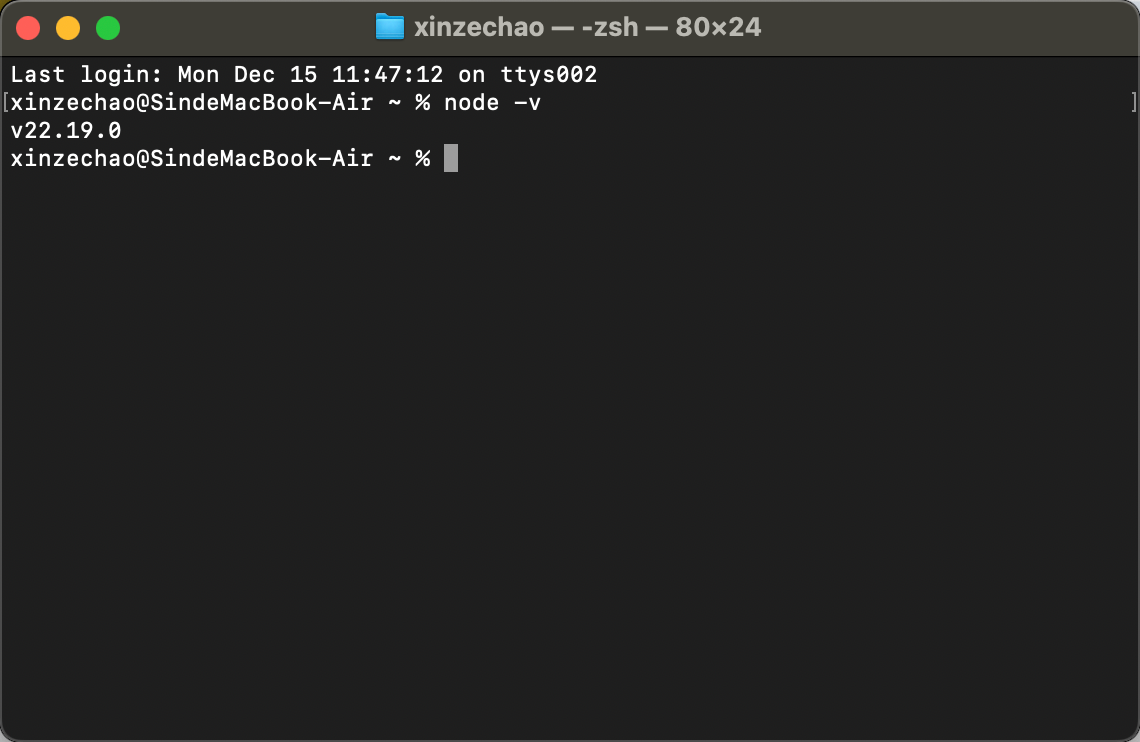
- 在终端里输入指令,检测是否安装Node.js
node -v- 已安装Node.js,会出现
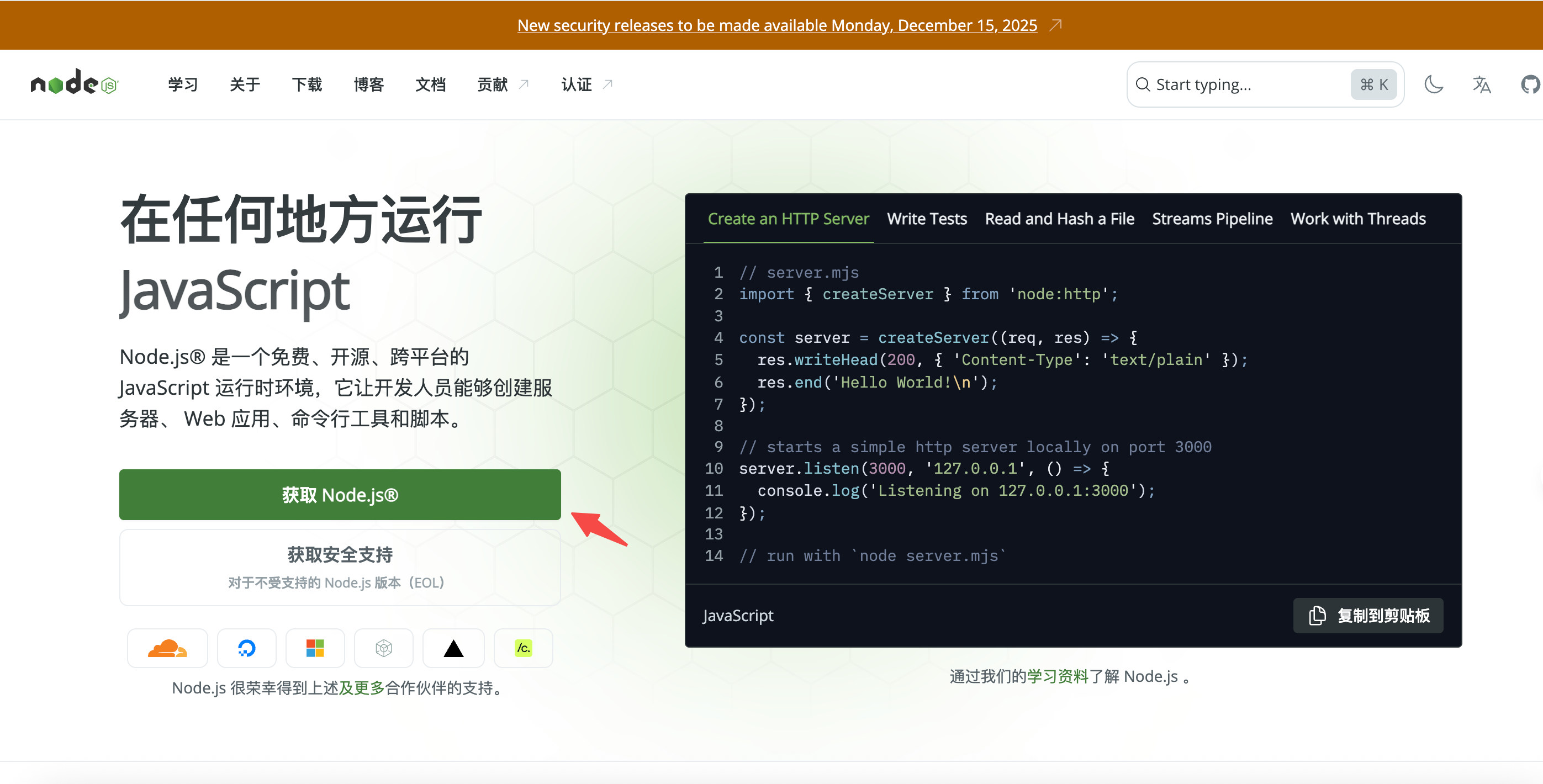
- 未安装Node.js,先前往官网下载
- 下载地址:https://nodejs.org
- 下载并安装成功后,打开终端,输入命令,验证安装成功
node -v    # 应该显示 v20.x.x 或 v22.x.x
npm -v     # 应该显示 10.x.x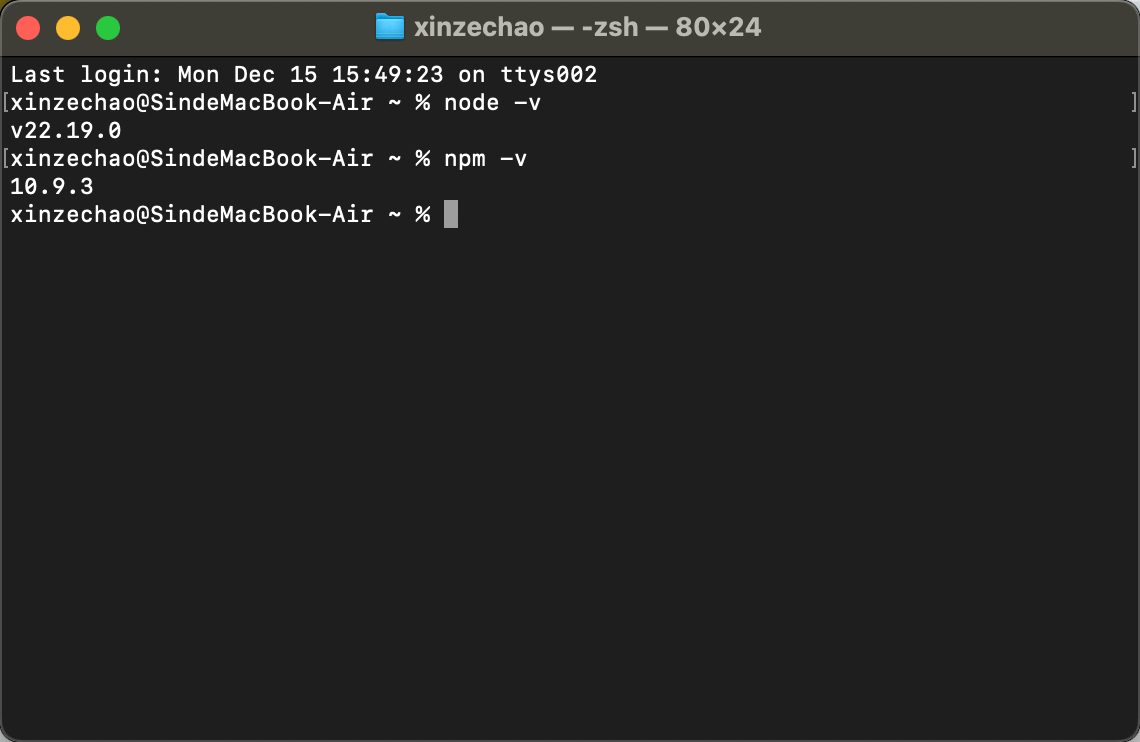
- 已安装Node.js,会出现
Step 2 · 安装Claude Code
- 在终端输入以下命令
npm install -g @anthropic-ai/claude-code- 如果你的网络很慢,关掉vpn,在终端内先用键盘的“Control + C”停掉进程,再输入以下指令,使用国内镜像安装
npm install -g @anthropic-ai/claude-code --registry=https://registry.npmmirror.com - 如果安装成功,会出现这样的结果
changed 16 packages in 4s

2 packages are looking for funding
  run `npm fund` for details
Step 3 · 登录Claude Code
- 验证当前安装是否成功,在终端输入指令,看到版本号就说明安装成功
claude --version - 确定安装成功后,输入指令
claude- 应该可以看到,Claude让你做授权的选项,点击回车键

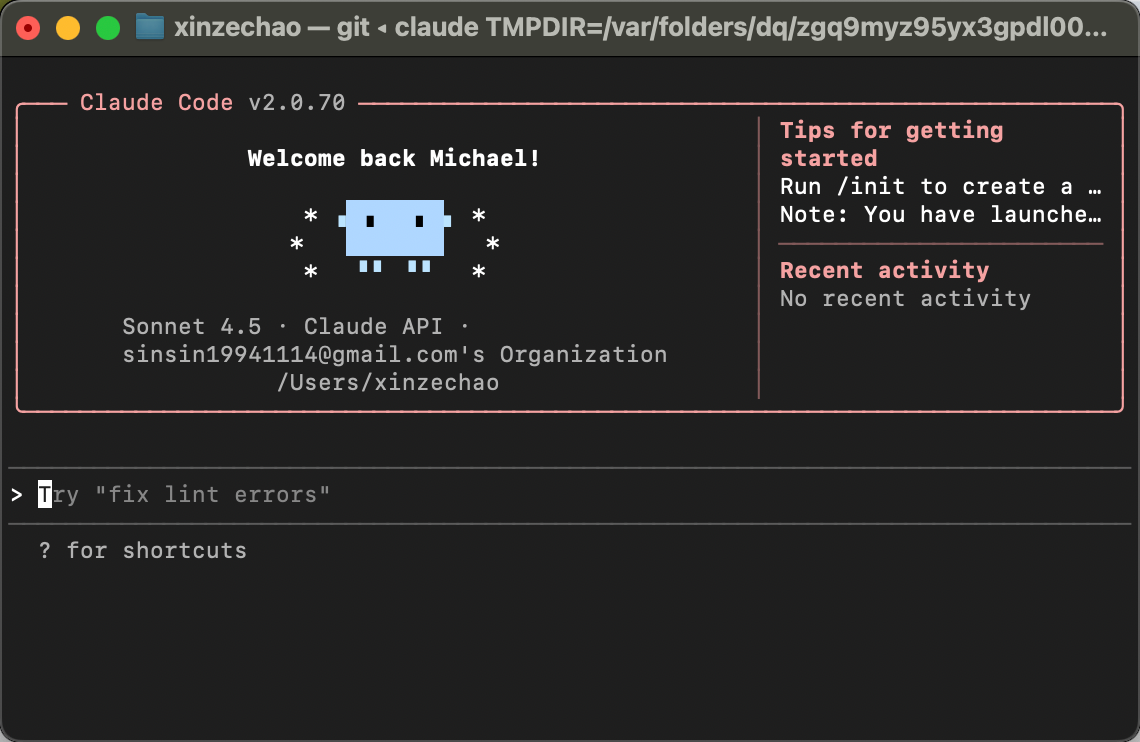
- 我们就能看到,启动Claude Code CLI成功的画面。即可开始使用
- 应该可以看到,Claude让你做授权的选项,点击回车键
Windows

Step 1 · 确认系统自带Powershell
- Windows 10(版本1903及以上)自带Powershell,更早的系统版本请先更新Windows系统
Step 2 · 打开Powershell
- 右键点击开始菜单 → 选择"Windows PowerShell"
Step 3 · 使用winget方式安装Node.js
- 输入指令
winget install OpenJS.NodeJS.LTS - 出现如下结果
Found Node.js LTS [OpenJS.NodeJS.LTS] Version x.x.x Starting package install... Successfully installed - 验证Node.js安装结果,输入指令
node -v
```

**预期结果**
```
v20.x.x 或 v22.x.x
Step 4 · 安装Claude Code
- 在Powershell中输入指令
npm install -g @anthropic-ai/claude-code- 如果速度很慢,请使用国内镜像
npm install -g @anthropic-ai/claude-code --registry=https://registry.npmmirror.com ``` **预期结果** ``` added 16 packages in 4s - 安装成功后,验证一下,在Powershell中输入
claude --version
```

**预期结果**
```
claude version x.x.x(如 1.0.40)
Step5 · 启动Claude Code
- 在Powershell中输入指令
claude ``` **预期结果** ``` 终端显示: To authenticate, visit: https://console.anthropic.com/...- 打开对应页面进行授权即可
- 完成授权后,回到Powershell,如果显示如下👇,则启动成功。即可开始使用
Successfully authenticated as: xxx@xxx.com